How to Backup Your Blogger Site in 3 Simple Steps
Step #1 - Access your blog menu
The first thing you’ll want to do is access your Blogger blog menu. Find the blog that you would like to backup and simply click on the arrow to the right of the “post list” option. This will bring up a menu with lots of options. The only two we’ll be focusing on in this tutorial are the “Template” and “Settings” links. The “Template” option will help you to download your blog template or “theme” and the “Settings” option will allow you to export all of your blog content (see details below).

Step #2 - Download your blog template or “theme”
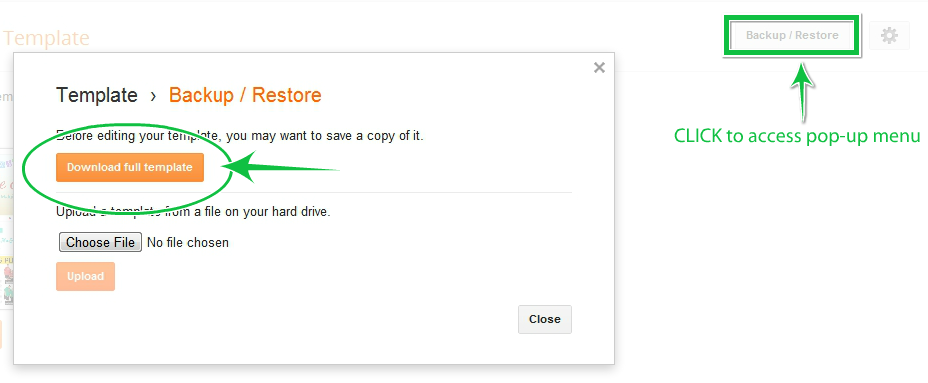
Once you’ve clicked the “Template” option, you’ll come to a page with a link in the top/right corner that says “Backup/Restore”. Click that link to access the pop-up window that allows you to download your current template. Click the orange “Download Full Template” button to proceed.
Step #3 - Export your blog content
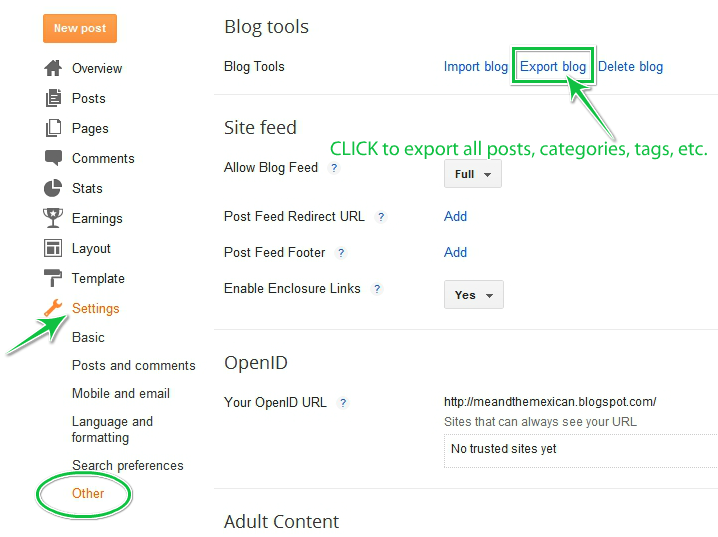
After you’ve clicked on the “Settings” option, as shown in step #1 above, you’ll be taken to a page with more options in the left sidebar. Under the “Settings” tab, click the “Other” link. At the top of the screen, you should see the “Blog Tools” option. Click “Export blog” to download your blog’s current content.
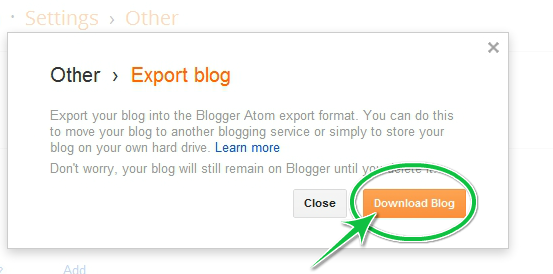
When you click on the “Export blog” link, a pop-up box will appear. Click the “Download Blog” button to download all of your blog’s current posts, categories, tags and other content.
And that’s it!! You’ve just backed up your blog! You have a copy of your template, a copy of your blog content and you’re ready to go! Stay tuned for an upcoming tutorial about restoring your blog template and content in a future post!









Awesome. Thanks, Chantilly!
Monica recently posted..Little Spanishers Writing Activity
No problem Monica! Let me know if there’s anything else you need. I would be happy to help. :)
Chantilly Patiño recently posted..5 Ways to Improve SEO & Get More Traffic